Feature:
Whitelabeling

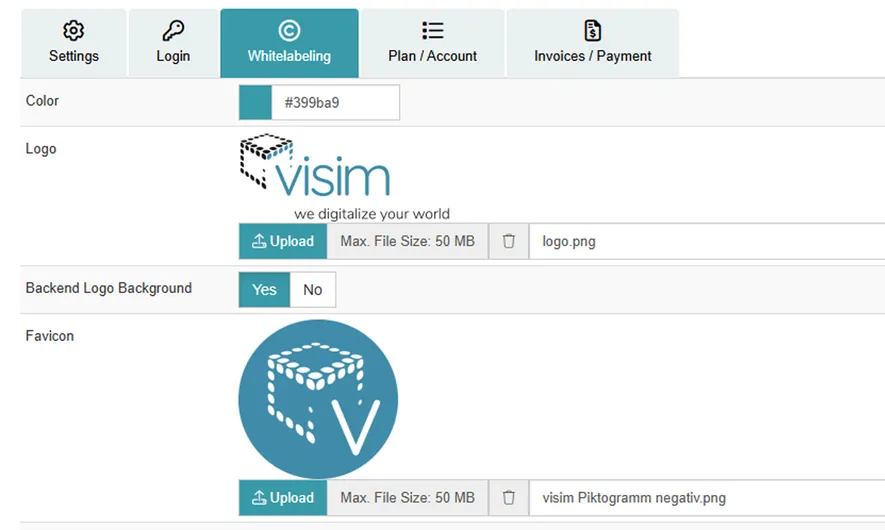
With MPskin's whitelabeling, the login interface and the backend can be branded with your company logo and a custom color. 


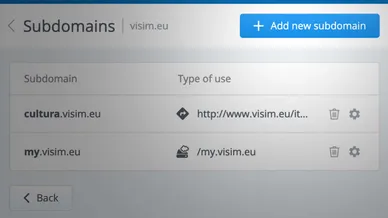
A whitelabel domain allows you to give the various MPskin URLs an individual name, for example: my.visim.eu instead of my.mpskin.com.
What is a Whitelabel?

A Whitelabel Domain allows you to brand the different MPskin URLs to your own company‘s name and website. 
This means that instead of „my.mpskin“, you can redirect all your MPskin tours (as well as the MPskin backend) to a new URL of your choice. 
For example: my.visim.eu 

The „Whitelabel“ is part of MPskin’s PRO plans. It cannot be purchased das an add-on to the BASIC or BUSINESS plan.

Whitelabel Domains

This Whitelabel Domain is only a redirection of your existing MPskin tours and backend to another URL – this means that you can use both the standard MPskin login page and URLs and your new Whitelabel URL to log into MPskin. The Skin content will always be identical. 

If, for any reason, your Whitelabel Domain is not working or has an outage due to your Web Provider, you can still access your tours via the regular MPskin login. 

Additional Whitelabel Domains

After setting up the initial Whitelabel, you also have the option of purchasing additional Whitelabel Domains. 
Additional Domains can be purchased for 120 € per year. If your purchase an additional Whitelabel Domain, ALL of your Skins will also be available under the additional Whitelabel URL. 
If you only use a few of your projects with this additional Whitelabel, you can simply disregard the other projects and continue to edit and share them under your primary Whitelabel Domain. 

For all types of Whitelabels, keep in mind that any changes done under one URL will appear in all URLs.
The data and content are identical for all Whitelabel Domains. 

Whitelabel Setup Guide

Step 1 - Create your Whitelabel subdomain

To set up a new Whitelabel domain, you first need a subdomain of your own domain, for example:

my.yourcompany.com

The subdomain should be used exclusively for your MPskin Whitelabel. Do not use your main domain or website homepage.

Step 2 - Create a CNAME record

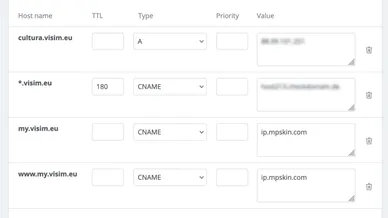
Open the DNS settings of your domain and create one single CNAME record for your chosen Whitelabel subdomain.

Point the subdomain to: ip-cdn.mpskin.com

Example: my.yourcompany.com → ip-cdn.mpskin.com


No additional DNS records are required. If you do not have access to your domain's DNS settings, please contact your web administrator or domain provider.

Step 3 - Add the domain in MPskin

Log in to your MPskin account and open the domain management section under Settings → Whitelabeling.

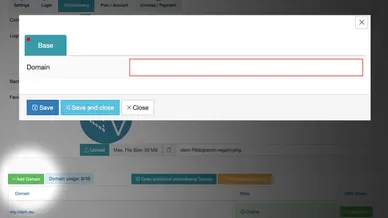
Click Add Domain and enter the subdomain you created. MPskin will show you the required DNS record and automatically check whether the domain has been configured correctly.

DNS changes may take a few minutes to be detected, depending on your provider.

Step 4 - Activate your Whitelabel

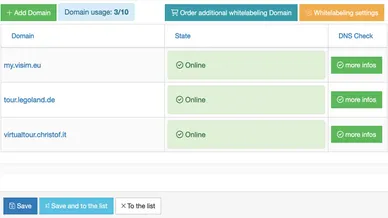
As soon as the DNS check is shown in green, click Request Whitelabel Activation.

From this point on, MPskin takes care of the rest automatically!

This process usually takes only a few minutes. You can follow the current status directly in your Whitelabel domain list.

Step 5 - Done! 🎉

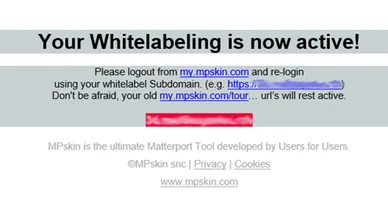
Once the setup is complete, you will receive a confirmation and your new Whitelabel domain is ready to use.

You can then log in to MPskin through your own domain and share your skins using your Whitelabel URLs.

Changing/Deleting a Whitelabel Domain


If you wish to change or delete an already set up Whitelabel Domain, please contact us at support@mpskin.com 

You cannot perform these changes yourself, but we can delete an existing Whitelabel for you so you can set up a new one. 
Keep in mind that when you ask to delete an existing Whitelabel Domain, all the tour links with this domain will no longer work! Make sure that you update all your old Skin URLs with the new ones.