Feature: 
Hotspot Images and Panoramas

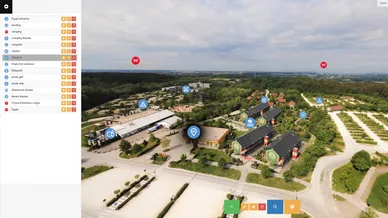
MPskin's “Hotspots” feature brings static images to life!


Both 360° panoramas and normal images can be equipped with interactive Hotspots in MPskin. You can assign click actions to each hotspot, creating navigation between multiple images or linking to other areas or spaces.
 

With this method, you can even create simple 360° tours, either as a standalone tour or as an integration for a Matterport tour!
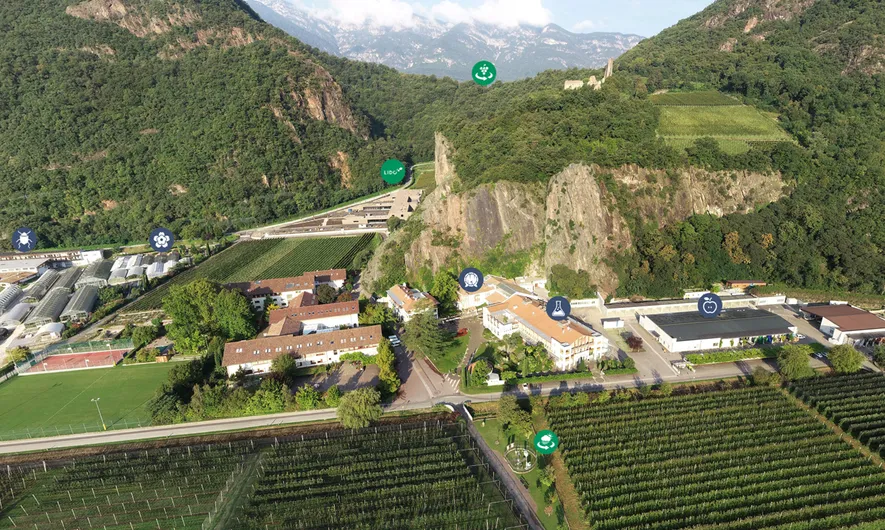
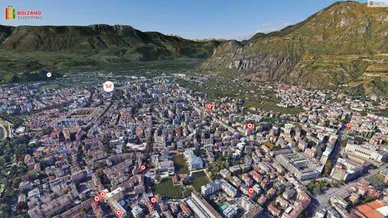
Breathtaking Impressions

With our panorama feature, you can easily add high-resolution 360-degree images to your tour! Images can be up to 10,000 x 5,000 pixels in size. 
Panoramas can be integrated into the tour in different ways: in tags, in the menu, as a sweep action, in the highlight reel or as an entry popup. 

Hotspots

By adding 'Hotspots', you can link any click action to the image or panorama - for example, links to additional panoramas, audio files, photos, text or external links. 

With the “external links” option, you can also link other skins in the panorama! This is particularly useful for projects that consist of several skins.
The individual hotspots can of course also be customized with their own icons and colors.

360° Tours

You can also create standalone 360° tours in MPskin! To do this, first upload all the required images in the panorama tab, select the starter panorama as an “entry popup” and connect the different panoramas to each other using hotspots.
A 360° tour like that can also be linked with or added to a skin - for example, to display outdoor areas or more distant areas without the need extra Matterport scans. 

FAQs about
Hotspot Images

How do I start a tour with a Hotspot Image/Pano?

To do this, you must first upload the Hotspot Image/Pano and configure it as an “entry popup”.
Then, set the entry popup to “Fullscreen”.

If the starter image is to be used in several skins, we recommend creating a standalone panorama tour/360 tour (without Matterport ID) instead and linking it in the various tours as entry popup with the “external link” option. 
Advantage: when the panorama has to be updated, the pano is automatically adjusted in all tours, avoiding having to update each skin individually. In addition, the tour menu is also displayed above the panorama in this way! 

Can I also use regular images with Hotspots?

Yes!


When uploading the image, you can choose whether it should be a panorama or a “regular image.” The functionality remains the same; you just need to select the image crop.

There are two options for this: “Cover screen” or “Show full image.” With the first option, the image is automatically zoomed in to fill the entire screen.

How many Panoramas can be uploaded in one Skin?

There is no limit to the number of panoramas you can upload! You can use as many as you like.
Panoramas are also not loaded directly at the start of the tour, so even a larger number of panoramas will not affect the loading time of the tour itself. 

What is the maximum size for Panoramas in MPskin?

The maximum permitted size of the panoramas is 10,000 x 5,000 pixels. 
However, a smaller size does mean faster loading times, so a compression to e.g. 8,000 x 4,000 pixels is recommended - especially if several panoramas are used in the skin. 

Where can Hotspot Images be integrated with MPskin?

Hotspot Images can be integrated virtually anywhere: in tags, in the menu, as a click action on virtual staging objects, as an entry popup or even as a sweep action! 
Drone photos are particularly suitable as entry popups for your tour.

Can Hotspot Images also be configured in several languages?

Of course! As usual with MPskin, Hotspot Images can be configured in all selected languages. 

What cameras can be used to create Panoramas?

Panoramic photos can be created with all conventional 360° cameras or with a drone. 
With drones, the panorama mode usually creates individual shots that later have to be stitched together with stitching software (e.g. PanoramaStudio, PTGui or Autopano) to create the overall 360 image.

How can I display the tour menu on top of the Hotspot Image?

This is only possible if you create a standalone Hotspot Image/Panorama tour. 
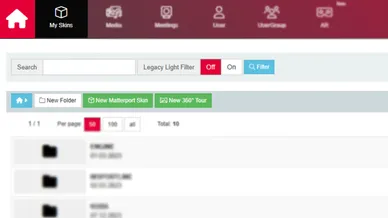
Under “My Skins” you can create a panorama tour with “New 360° Tour”. If you select the starter panorama as “Entry Popup” with the “Fullscreen” option enabled, the menu will be visible above the Hotspot Image in the tour. 

Start your creative journey with MPskin!